Effortlessly select and switch between Odoo databases, modules and more
⚠️ Important: Macros in Run Configurations are required to use all plugin features.
Amazing Features
- Database Selector
- Module Selector
- Test Selection
- Context Menu
- Run Configuration Examples
- Custom Integration
Database Selector
Updates db_name in odoo.conf to the database you picked. Alternatively, use macros $BTSDatabase$ and $BTSDatabaseWithD$ directly in your Run Configuration.
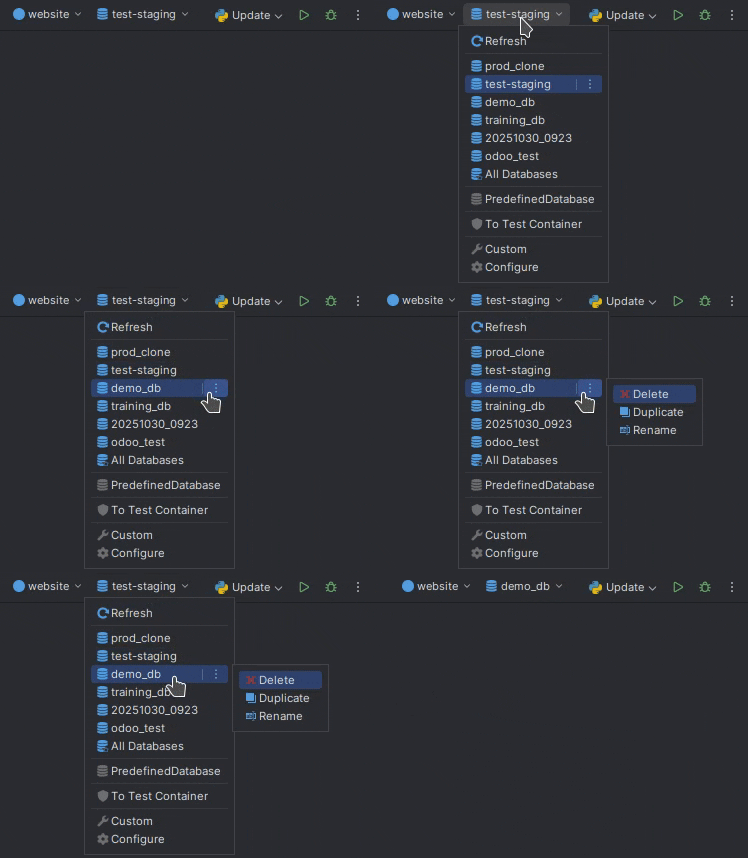
- Refresh – Automatically refreshes the database list when PyCharm starts or when the
odoo.confpath changes. Manual refresh is required after creating, deleting, or copying databases. - Database – Pick a database to update
db_nameinodoo.confautomatically, or use it in your Run Configuration with macros like$BTSDatabase$or$BTSDatabaseWithD$.Delete– Automatically configured for Braintec, PwC, and Ventortech.Duplicate/Rename– Braintec exclusive.
- All Databases – Picking this option sets
db_nametoFalsein yourodoo.conffile. - Custom – Manually type in a
db_nameto be saved to yourodoo.conf. This allows you to set a new name and run your install config to spin up a fresh database. - Configure – Advanced settings and automation:
Predefined Databases– Set up your own list of go-to database names.Path to odoo.conf– Set a custom path for your configuration file (Auto-configured for Braintec, PwC, and VentorTech).Fetch / Drop Databases– Commands to fetch or delete databases (Auto-configured for partner environments).
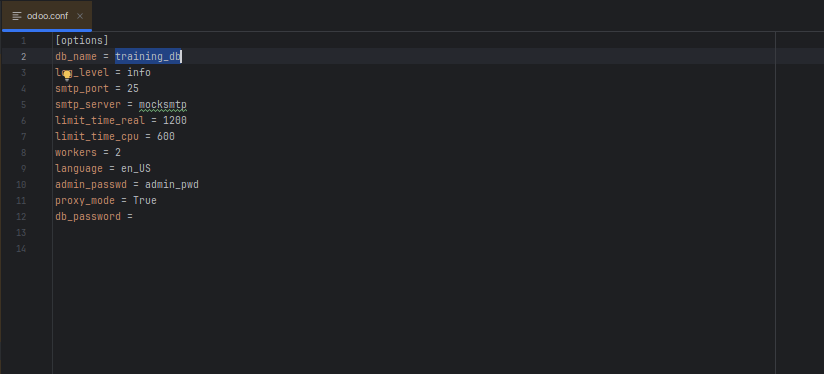
Or just use two handy macros — $BTSDatabase$ and $BTSDatabaseWithD$ — right in your Run Configuration.
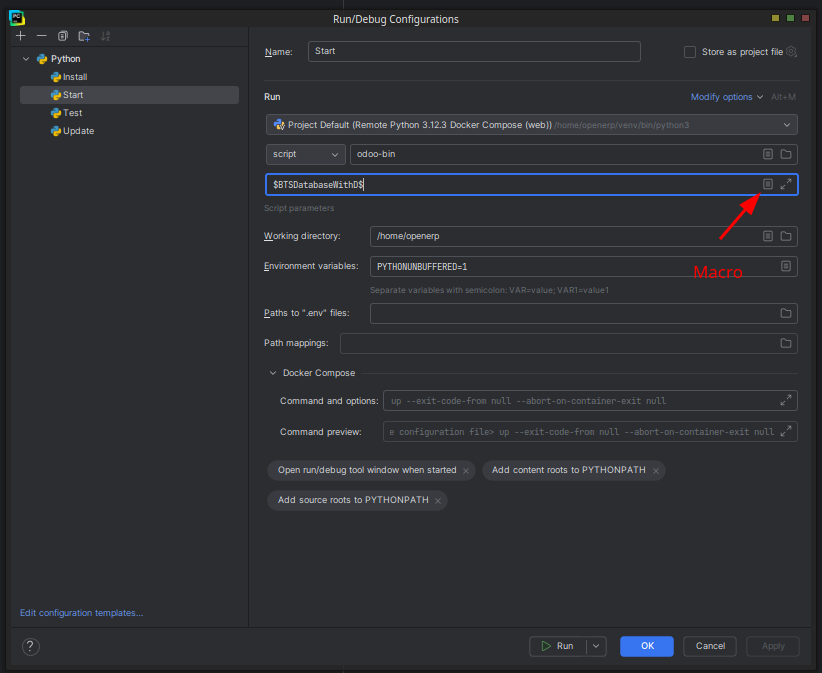
⚠️ Note on Refresh Behavior: After picking a database, `odoo.conf` might not visually refresh in the editor immediately. However, when you run Odoo, it will correctly use the selected database.
💡 Pro Tip:
- Ctrl + Alt + \ - to activate.
- Alt + Click or Alt + Enter – Copy name to clipboard.
- Middle-Click to fold.
Module Selector
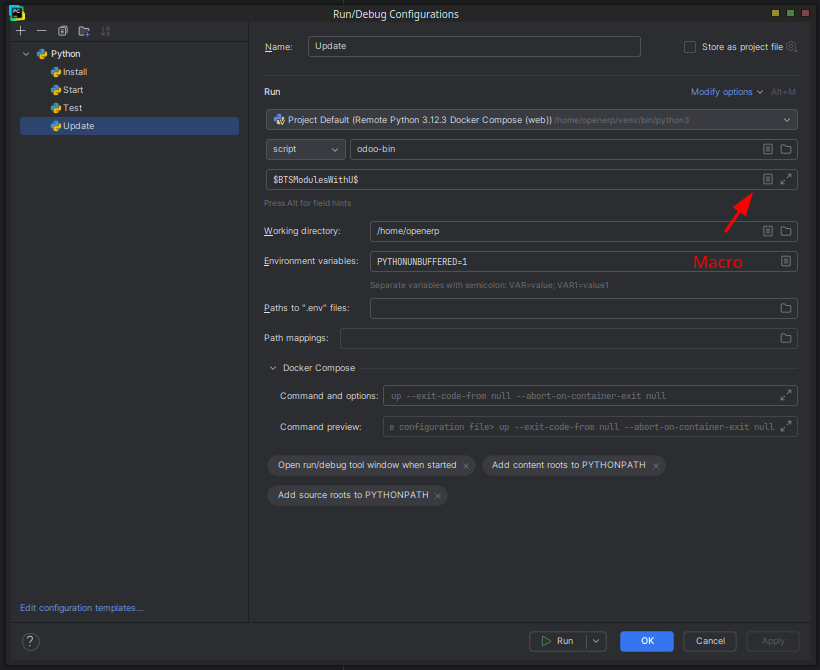
Scans your repositories and lets you pick modules to install, update, or test. Selected modules are injected into Run Configurations via macros $BTSModules$ and $BTSModulesWithU$. Simply create a new Run Configuration (e.g., Update) and use the macro to target your selection.
You can also use the $BTSAddonsPaths$ macro to define a custom addons path by adding --addons-path=$BTSAddonsPaths$ to your Run Configuration.
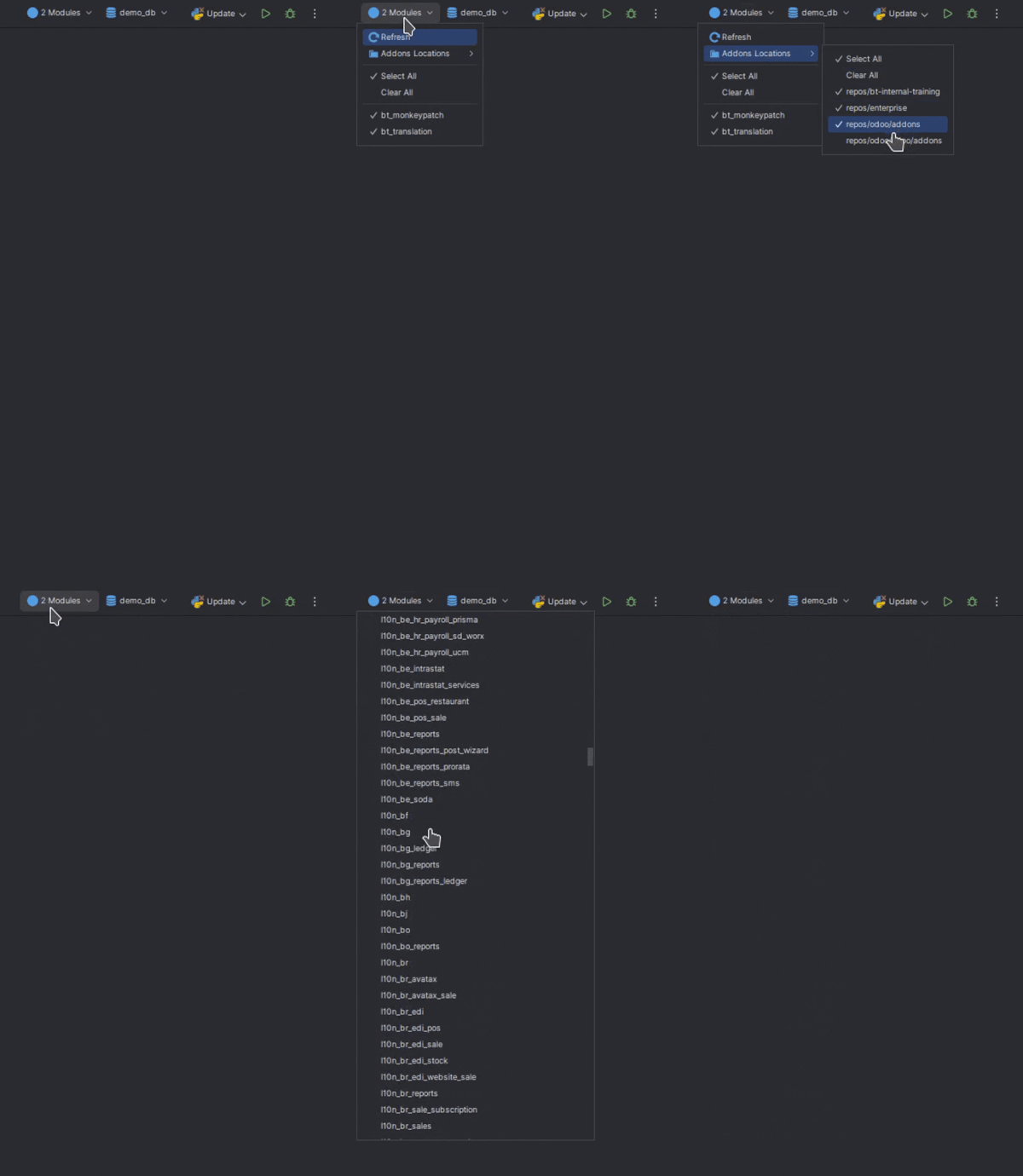
- Refresh – Refresh the module list on demand.
- Addons Paths – Choose specific repositories to focus your search and utilize them with the
$BTSAddonsPaths$macro. - Module Selection – Pick the modules you need, then reference them in your Run Configuration using
$BTSModules$or$BTSModulesWithU$.
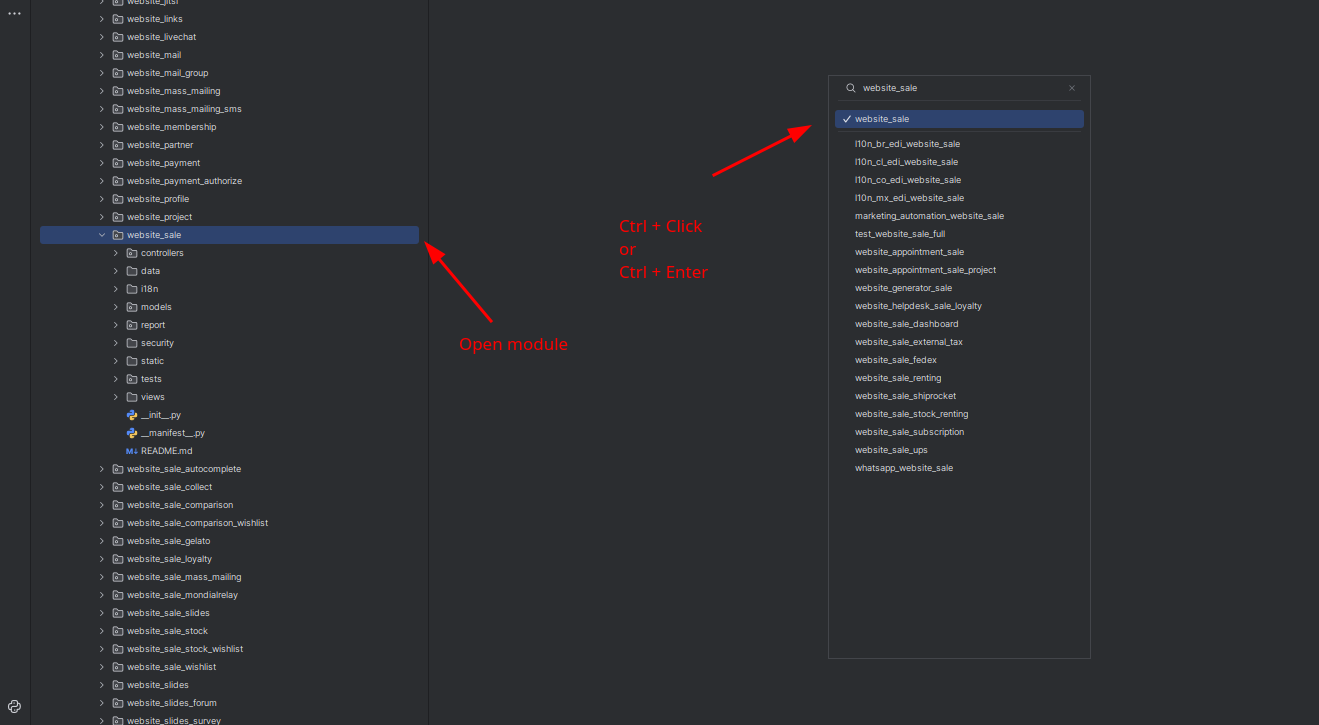
Navigation: Use Ctrl + Click or Ctrl + Enter within the Module Selector to jump directly to the module’s source in the File Viewer.
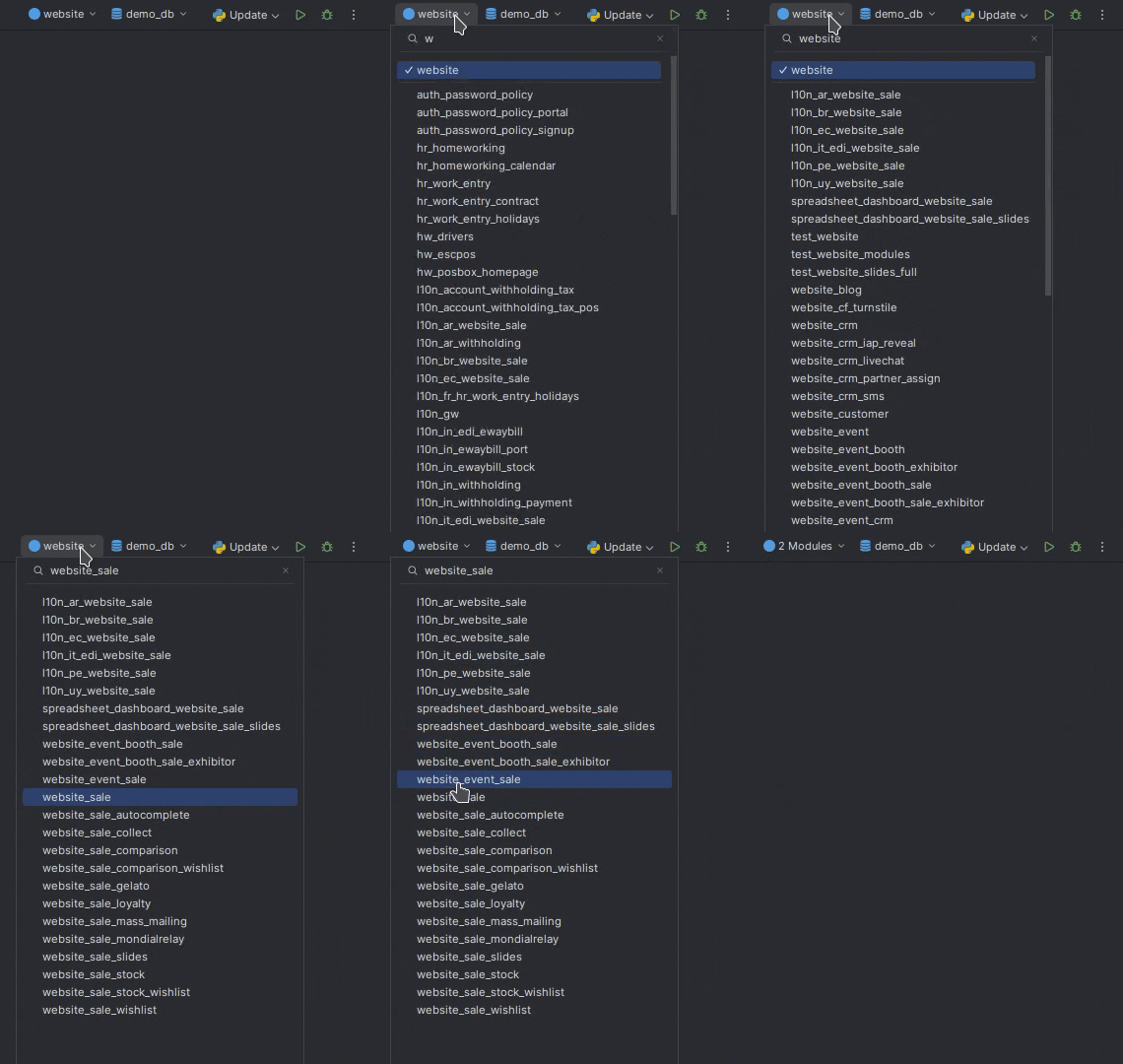
Filtering: For long lists, simply start typing to filter. Use the _ (underscore) prefix to search across all available modules.
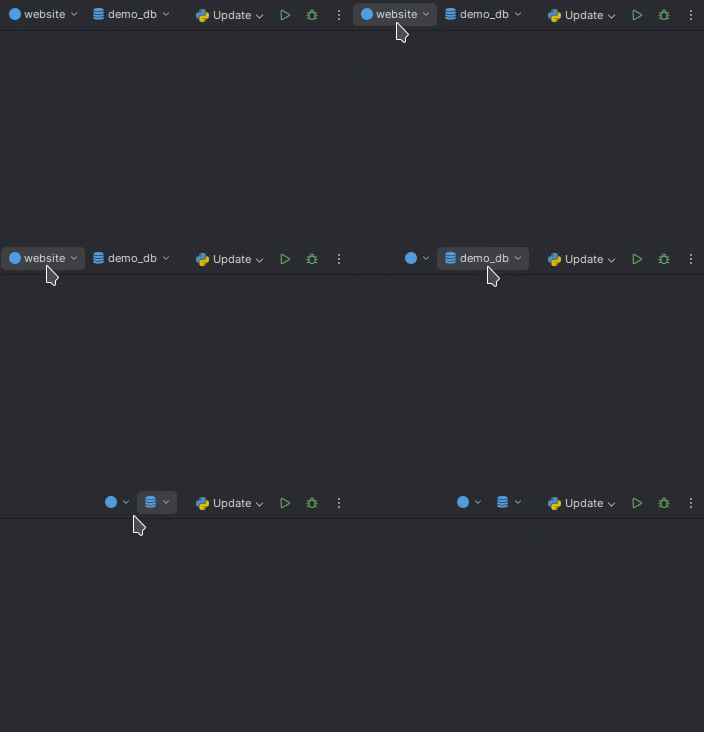
Layout: If you only need the Database Selector, you can hide the Module Selector with a Middle-Click.
💡 Pro Tip:
- Ctrl + Enter or Ctrl + Click - jump to source.
- Ctrl + Enter or Ctrl + Click - jump to source.
- Alt + Click or Alt + Enter – Copy name to clipboard.
- Middle-Click to fold.
- Right-Click Show context action.
- Ctrl + Alt + Shift + \ - to activate.
- _ - to search in all modules.
Test Selection
A streamlined way to target specific tests. You can select either a unit test or an entire test class, then inject it into your Run Configuration using the $BTSSelectedTest$ macro.
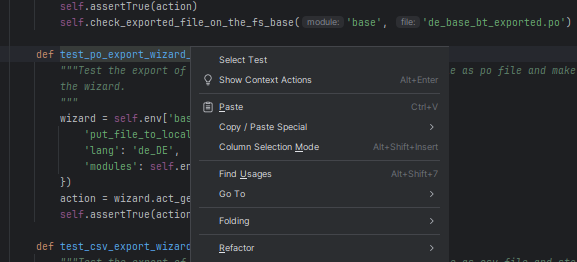
- Granular Control – Toggle between individual test methods and full classes.
- Macro Integration – Use
$BTSSelectedTest$to automate test execution across different environments.
Context Menu
Braintec Exclusive. Right-click any module to access a suite of specialized actions. Some operations may automatically trigger the installation of required bt plugins.
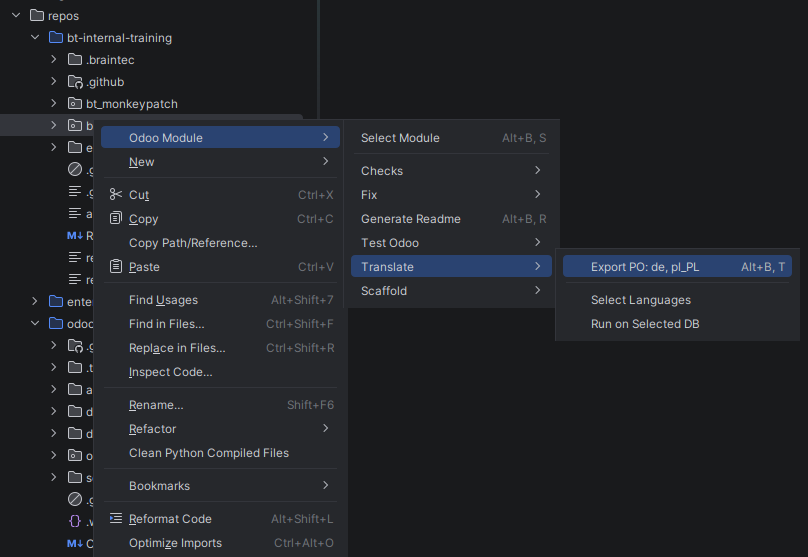
Core Actions
- Select/Unselect Module – Quickly add or remove a module from your current selection.
- Generate Readme – Execute
bt utility generate-readme <modules>.
Quality & Compliance
- Check Quality – Run code quality tests via
bt test code quality. - Fix PO / Ruff – Run
bt test checks-odoo-poorbt test ruff checkwith the--fixflag. - Dependencies & Licenses – Optimize module dependencies or verify licenses using
bt utility.
Odoo Testing
- Run Tests – Execute
bt test odoowith options for specific modules, project-only, or non-project modules. - Coverage Report – Generate a detailed coverage report during execution.
- Cleanup – Use the
Remove DBoption to delete the test database after the run.
Translation Management
- Export PO – Run
bt utility bt-translationfor specified modules and databases. - Language Selection – Define multiple languages (e.g.,
de_DE,pl_PL) using comma-separated values.
Scaffolding
Quickly generate Odoo components using bt utility scaffold:
- Module with One Click – Full module scaffolding.
- Component Creators – Dedicated actions for
Controllers,Migrations,Models,Views, andWizards.
Run Configuration Examples
Keep in mind you don’t always have to use every macro. For example, whether you need --addons-path depends on your project setup.
Install Modules
-i $BTSModules$ -d $BTSDatabase$
With addons paths:
-i $BTSModules$ -d $BTSDatabase$ --addons-path=$BTSAddonsPaths$
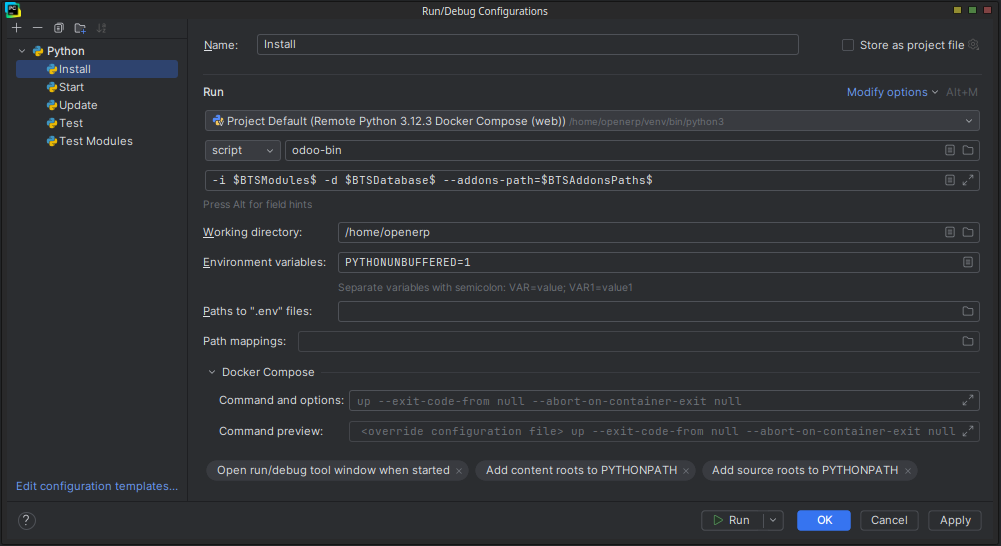
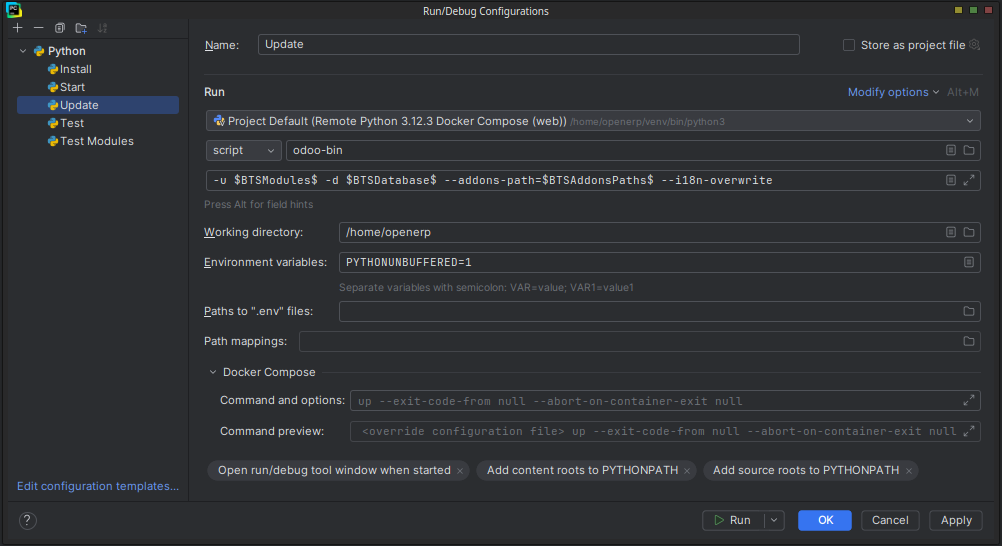
Update Modules
-u $BTSModules$ -d $BTSDatabase$ --i18n-overwrite
With addons paths:
-u $BTSModules$ -d $BTSDatabase$ --addons-path=$BTSAddonsPaths$ --i18n-overwrite
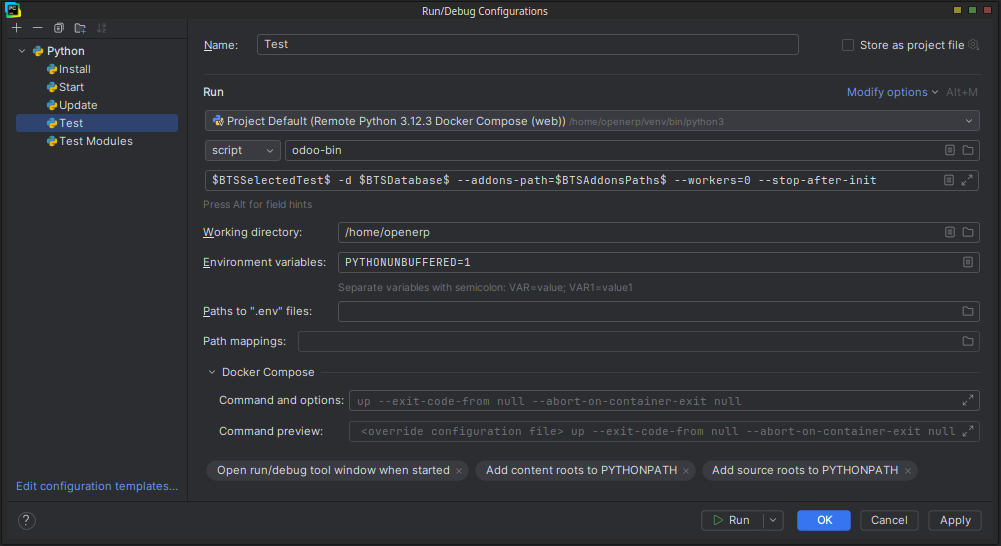
Test
$BTSSelectedTest$ -d $BTSDatabase$ --workers=0 --stop-after-init
With addons paths:
$BTSSelectedTest$ -d $BTSDatabase$ --addons-path=$BTSAddonsPaths$ --workers=0 --stop-after-init
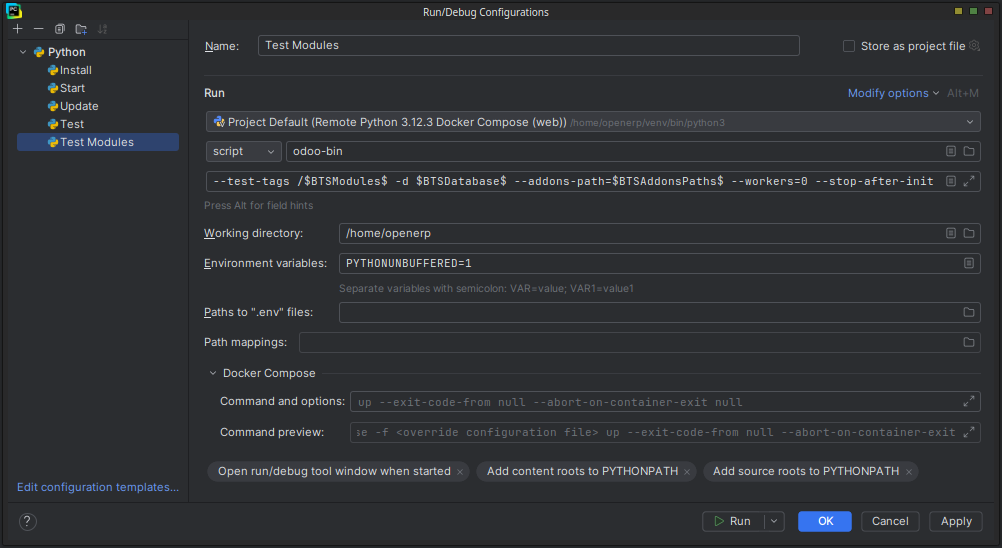
Test Modules
--test-tags /$BTSModules$ -d $BTSDatabase$ --workers=0 --stop-after-init
With addons paths:
--test-tags /$BTSModules$ -d $BTSDatabase$ --addons-path=$BTSAddonsPaths$ --workers=0 --stop-after-init
Custom Integration
EXPLORE TOGETHER
"Wanna see your workflow crack a smile?"
Need this plugin to work for your team or want custom actions built for your workflow? Let’s chat.
Tadeusz Jan Karpiński 🤙😎🤙